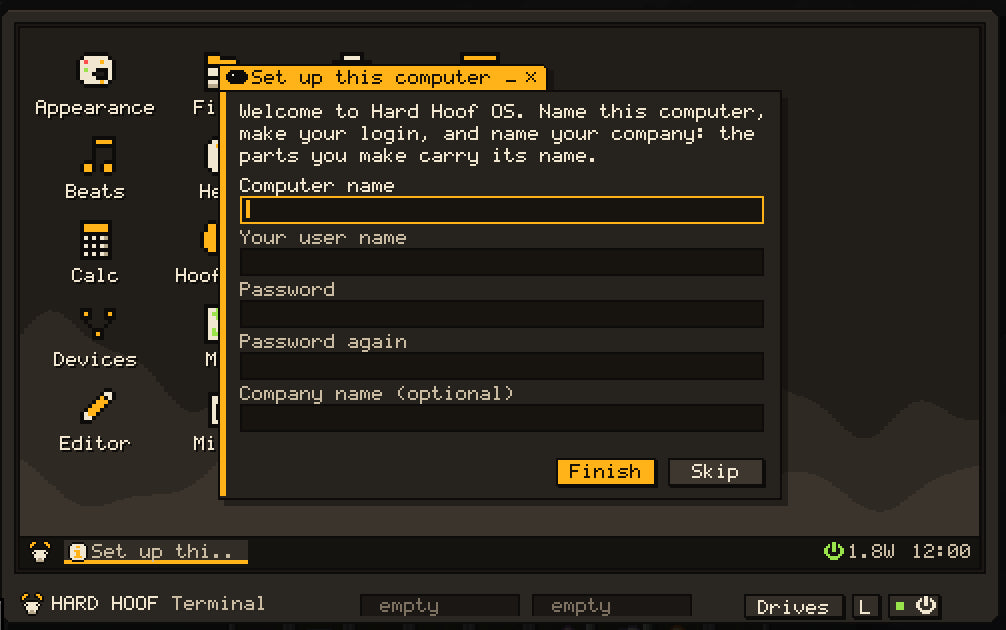
The Terminal is an in-world computer running Hard Hoof OS. Use its desktop apps, write Volt programs, and connect machines so the computer can operate your factory.
Build: Machine Workshop; use JEI for the recipe.
Power: rear DC input, 48 J reserve.
Storage: 8,000 B built-in flash and two removable-media bays.
First boot
- Place the Terminal with its screen facing you.
- Connect copper wire from a powered network to the back. A Coal Generator is enough for a first setup.
- Turn its master switch on and open the front console.
- Complete the setup prompts for the computer name, account, company, and screen-lock preference.
- Press Ctrl+Space to open the Horn, search for the Terminal app, and open a shell.
- Run the included first program:
run /home/hello.volt
The example asks your name and prints a greeting. It is created on a new computer's first boot. You can read and change your copy with the Editor.
What to open next
| Goal | App or command |
|---|---|
| Find an app, command, or theme | The Horn: Ctrl+Space, goat button, or type on the desktop |
| Browse files | Files, or ls and cd
|
| Edit a program | Editor; Ctrl+S saves, Ctrl+R runs |
| Read help | Help app, help, or man
|
| See connected machines | Devices app |
| Use a storage network | Storage app |
| Operate reality devices | Printer, Zone, or Worlds app |
| Read the real web | Browser app, web, or fetch, with an Internet Dish: The web & remote access
|
| Reach this computer from your desktop |
remote pair, then Hard Hoof Studio
|
| Check the weather | Weather app, or weather
|
| Run pressure machines | Pressure app, or pressure
|
| Inspect memory and processes | System app or ps
|
| Program a microcontroller | Put it in a bay, then run burn <file>
|
The built-in apps are Volt programs. Their files under /rom are readable, so you can learn from them and save your own copies.
Connect a machine
Place a compatible device next to a non-screen face of the Terminal, or connect it through Data Cable. Supply power to the device separately. Open Devices to inspect what the computer can reach before issuing commands.
Data Cable provides communication; copper wire supplies electricity. The Terminal's rear power connection and its data connection have different jobs.
Some devices have their controls only in a computer app. The Matter Printer, Zone Projector, Dimension Creator, and Gateway expose state at the block and actions through their apps or commands.
Hardware and power
| Feature | Current Terminal |
|---|---|
| Display | 480 × 270 pixels |
| Built-in CPU | 500 kHz; 25,000 instructions per tick |
| Built-in RAM | 64 KB |
| Upgrade sockets | CPU, two memory modules, network card |
| Removable bays | Two; accept supported disks or microcontrollers |
| Base power draw | 1.5 W idle plus up to 2.5 W as CPU load rises |
| Stored energy | 48 J |
The built-in CPU and memory let an empty-socket Terminal start. Installed parts can change its available hardware; use the System app to inspect your machine.
Closing the console leaves programs running while the computer has usable power. Losing usable power stops them; returning power boots the OS again. Save your work to files rather than relying on a program's temporary state. Files remain on their storage through a power interruption.
When you walk away
Since 0.6.0 a Terminal, rack bay, Router or Exchange keeps running when its chunk unloads, and a server restart resumes every program instead of rebooting. Idle computers sleep until something happens, so they cost almost nothing.
-
Devices. While the computer's chunk is loaded but a device's is not, the device stays listed and a call to it
answers
offline: <label> is not loaded. - Power, 0.6.0. An unloaded computer runs on its own stored charge: about 30 seconds for an idle Terminal. Then it stops, and boots again when you come back.
- Power, development build. A Terminal, Server Rack, Router or Exchange on a factory's copper wire is fed while its chunk is unloaded, as if you were there, so its programs keep running for as long as the wire has power. Terminals and racks now charge only for power actually delivered.
- Cables. Messages cross a data cable even when part of it is in unloaded chunks.
Neural Link (development build)
An Implant Bench fits a Neural Link in your brain. Press J (while no screen is open) to open the last Terminal you used, from anywhere in its world while its chunk is loaded. The cost: the link is a device on that computer's bus, so programs there, and anyone who gets into that computer, can read your vitals, write to your screen and jolt you. See Implants.
Files and startup
| Path | Purpose |
|---|---|
/home |
Your working files and first example |
/rom |
Read-only OS, apps, commands, and manuals |
/disk |
Disk in bay 1, when present |
/disk2 |
Disk in bay 2, when present |
/startup.volt |
Your optional program launched at boot |
Use Drives for copying files, storage limits, and chip programming. Try a program manually before making it your startup program.
If it does not work
- Offline: check the master switch, rear connection, generator fuel, and stored joules.
- Locked: sign in with the computer's configured account.
- Missing device: check its power and non-screen data connection; inspect Devices.
-
Save refused:
/romis read-only; use/homeor a removable disk. - Out of memory: inspect running programs in System and close work you no longer need.